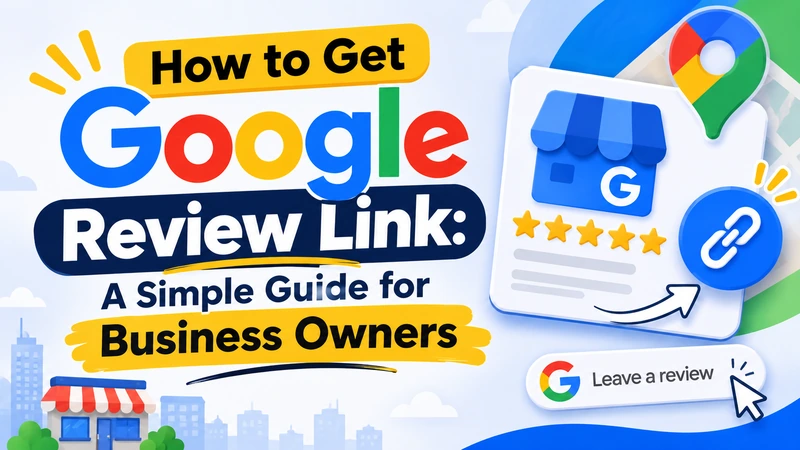
If you want more customers to leave feedback, learning how to get a Google review link is a good starting point. Google provides a free link through your Business Profile that takes customers directly to the review form. You can copy it, share it through messages or emails, and create a QR code for your physical business location.
What You Need to Know First
- You can get your review link directly from your Google Business Profile.
- The usual process is Read Reviews → Get More Reviews → Copy.
- Google lets you create a QR code for customers to scan.
- You can share your link through text messages, emails, receipts, and WhatsApp.
- Never offer discounts or gifts in exchange for Google reviews.
What Is a Google Review Link and Why Do You Need One?
A Google review link is a direct URL that takes customers to the review form for your business on Google.
Without this link, customers may need to search for your business, open its listing, find the reviews section, and then locate the option to write feedback. That extra effort can make the process less convenient.
A direct link removes several of those steps.
For example, imagine you own a plumbing company in Chicago. After completing a repair, you can send the customer a short thank-you message containing your review link.
The customer can open it, choose a star rating, and share their experience.
Why does this matter for your business?
Google reviews help potential customers understand what it is like to work with you. They also give people additional information when comparing local businesses.
Reviews are relevant to local search visibility, although simply collecting more reviews does not guarantee higher rankings.
Google considers several local ranking factors, including relevance, distance, and prominence.
You can learn more about improving these signals in our guide to Google Business Profile optimization.
How to Get Google Review Link From Your Business Profile
The easiest way to get your link is through the Google Business Profile management interface. You don’t need a paid review-generation tool or a third-party website.
Follow these steps.
Step 1: Sign In to Your Google Business Profile
Open Google and sign in using the Google account connected to your business.
Search for your business name while signed in. Your Business Profile management options should appear if you have the correct account and permissions.
If you manage several businesses, make sure you select the correct listing.
This matters because every business location has its own profile and review-request link.
Step 2: Open the Read Reviews Section
Find the Read reviews option in your Business Profile.
Select it to open the customer review management area.
You should see existing customer feedback and options for managing your reviews.
If you cannot find the option, check that you’re signed in with an account that has permission to manage the listing.
Step 3: Select Get More Reviews
Look for the Get more reviews option.
Google will open a sharing window containing your review-request link and an option to generate a QR code.
This is the link you need to send to customers.
It takes them to the review form rather than asking them to find your business manually.
Step 4: Copy Your Google Review Link
Select Copy next to the review link.
Your URL is now ready to share.
Save it somewhere accessible, such as a business document, email template, or customer communication system.
You don’t need to generate a new link every time you request reviews. Keep using the same valid link for that location.
Step 5: Test the Link Before Sharing It
Don’t send the link to dozens of customers without testing it first.
Open it in a private or incognito browser window on your phone. Check that it directs you to the correct business and displays the review form.
Also check that:
- The correct business name appears.
- The review form opens successfully.
- The link doesn’t redirect to another location.
- Customers can access the form after signing in to their Google accounts.
A quick test can prevent unnecessary confusion and missed reviews.
For the latest instructions on creating and sharing review links and QR codes, visit Google’s official review link and QR code guide.
Can You Get a Google Review Link on Your Phone?
Yes, you can access and share your review link from a phone when your Business Profile management options are available.
However, there’s an important difference between copying the link and generating the QR code.
Google currently states that review QR codes can only be generated through a computer browser, not directly on mobile devices.
Here’s how to approach both tasks:
| Task | Computer | Mobile |
|---|---|---|
| Access your Business Profile | Yes | Yes |
| Copy a review link | Yes | Yes, when available |
| Share the review link | Yes | Yes |
| Generate Google’s review QR code | Yes | No |
| Send the link through WhatsApp | Yes | Yes |
If you’re working from a phone, save the link once you have access to it.
For QR code creation, use a desktop browser and download the image to your computer.
This is particularly useful for businesses that want to print review cards, counter displays, or receipts.
How to Create a Google Review QR Code
A QR code gives customers another way to open your review form without typing a website address.
When someone scans it using a smartphone camera, the phone opens the review link.
Google provides this option directly through the Business Profile sharing window.
Follow these steps:
- Open your Business Profile on a desktop computer.
- Select Read reviews.
- Choose Get more reviews.
- Find the QR code displayed in the sharing window.
- Right-click the QR code.
- Select Save image as.
- Save the image to your computer.
You can now use the downloaded QR code in printed or digital materials.
Where Should You Display Your QR Code?
Think about the moments when customers naturally have time to share feedback.
For example:
- Restaurants: Place the QR code on receipts or table cards.
- Dental clinics: Display it at the reception desk.
- Hair salons: Add it to appointment thank-you cards.
- Plumbing companies: Include it in the digital invoice after completing a job.
- Retail stores: Display it near the checkout counter.
Make sure the QR code is large enough to scan and has enough contrast against its background.
Test the printed version before producing multiple copies.
A QR code that works on your computer may become difficult to scan if you print it too small.
Where Should You Share Your Google Review Link?
Getting the link is only the first step. You also need to make it easy for customers to find and use.
The best approach is to include it in communication that already happens between your business and its customers.
1. Send It Through Text Messages
Text messages are useful for local service businesses because customers usually receive them directly on their phones.
For example:
“Hi Sarah, thanks for choosing us for your home cleaning service. We appreciate your business. If you have a moment, we’d love to hear about your experience: ReviewLink.”
Keep the message short and friendly.
Avoid telling customers which star rating to select or what to write.
2. Add It to Thank-You Emails
If you communicate with customers through email, include the link in your follow-up message.
A simple email can thank the customer, confirm that the service is complete, and provide an optional opportunity to leave feedback.
This works particularly well for consultants, agencies, contractors, and professional service providers.
3. Include It on Receipts and Invoices
A receipt or invoice gives you another opportunity to request feedback.
You can add a short sentence at the bottom:
“Thank you for your business. Share your experience with us on Google.”
Place your review link directly below it.
For printed receipts, a QR code may be easier to use than a long URL.
4. Share It Through WhatsApp
WhatsApp is useful for businesses that already communicate with customers through the platform.
You can send the link after completing an order, appointment, or service.
However, avoid sending repeated messages to people who haven’t responded. A polite request is more appropriate than constant reminders.
5. Add It to Your Website
You can also include a review request on your website.
Good locations include:
- A thank-you page after a completed service.
- A customer support follow-up page.
- Your contact page.
- A dedicated customer feedback section.
Make sure the link is easy to recognize and doesn’t interfere with the main purpose of the page.
What Does a Google Review Request Look Like? A Real Example
A practical example makes it easier to understand how a business can use its review link in everyday operations.
Consider an illustrative home cleaning company in Dallas, Texas.
The business completes approximately 40 customer appointments each month. Its owner wants to make requesting feedback part of the regular customer follow-up process.
Instead of asking customers verbally and hoping they remember, the owner creates a simple process.
| Activity | Illustrative monthly figure |
|---|---|
| Completed appointments | 40 |
| Customers receiving a review request | 40 |
| Customers who leave a review | 8 |
| New reviews collected | 8 |
| Review request method | SMS and email |
These figures are hypothetical, not actual client results or industry benchmarks.
The owner follows three simple steps.
First, the business saves its Google review link in its customer communication template.
Second, after completing an appointment, the team sends a thank-you message with the link.
Third, the owner checks new reviews and responds to customer feedback.
The benefit isn’t only the number of reviews received. The business also creates a repeatable process that doesn’t depend on employees remembering to ask every customer individually.
If the business receives negative feedback, the owner can review the problem and look for ways to improve the service.
That makes customer feedback useful beyond its public star rating.
Common Mistakes to Avoid When Sharing Google Review Links
Having a working link doesn’t mean every review request follows Google’s policies. Some mistakes can damage your reputation or put your Business Profile at risk.
Here are the problems worth avoiding.
1. Offering Discounts in Exchange for Reviews
Never promise free products, discounts, gift cards, or other benefits in exchange for a Google review.
Google prohibits incentives for posting reviews, changing reviews, or removing negative reviews.
Ask customers for honest feedback without offering anything in return.
2. Asking Only Satisfied Customers
Don’t send review requests exclusively to customers you expect to leave five-star ratings.
This practice can create a misleading picture of your customer experience.
Give customers an equal opportunity to share honest feedback, regardless of whether their experience was positive or negative.
3. Using the Wrong Business Location Link
Businesses with multiple branches need to be careful.
For example, a company with offices in New York and Boston should not send its New York customers the Boston location’s review link.
Check the business name and location before sending requests.
4. Sharing a Link Without Testing It
A broken link or incorrect destination can stop customers from leaving feedback.
Always test the link on a smartphone before adding it to printed materials or automated messages.
5. Buying Fake Google Reviews
Purchased reviews might seem like a shortcut, but they create serious reputation and policy risks.
Google can remove reviews that violate its policies and may apply restrictions to Business Profiles involved in fake engagement.
Focus on genuine customer experiences instead of trying to increase your rating artificially.
6. Ignoring Customer Reviews After Receiving Them
Collecting reviews is not the end of the process.
Responding to feedback shows customers that you pay attention to their experiences.
Thank people for positive comments. Address negative feedback professionally without revealing private customer information.
You can also learn how to search Google reviews by name to find specific customer feedback and understand your online reputation more effectively.
How to Fix Google Review Link Problems
Sometimes a review link doesn’t work as expected. Before creating another link, identify what is causing the problem.
| Problem | Possible reason | What to do |
|---|---|---|
| Business profile doesn’t appear | Wrong Google account | Sign in with the managing account |
| Get more reviews is missing | Limited account permissions or interface changes | Check profile access and management options |
| Wrong business opens | Incorrect location link | Copy the link from the correct profile |
| Review form doesn’t load | Browser or sign-in issue | Test in another browser and sign in |
| QR code isn’t available | Using a mobile device | Generate it using a desktop browser |
| Customer cannot submit a review | Account or policy restrictions | Ask them to check their Google account and review eligibility |
If your Business Profile is suspended, you may need to resolve that issue before managing your listing normally.
Our guide on Google Business Profile suspension explains common suspension reasons and the steps involved in resolving them.
Remember that a missing review doesn’t automatically mean your link is broken. Google may also remove reviews that violate its policies.
How Leemjaz Can Help With Google Reviews and Local SEO
Getting a review link is simple, but building a strong local online presence requires consistent work.
Leemjaz helps businesses improve their Google Business Profiles through local SEO, business information optimization, content strategy, and reputation management guidance.
Our approach focuses on making your business easier to discover while helping potential customers find useful information before contacting you.
Explore our digital marketing and SEO resources for more practical advice on improving your online visibility.
Frequently Asked Questions
1. How do I get my Google review link for free?
You can get your Google review link for free through your Google Business Profile. Sign in to the account managing your business, open the profile, select Read reviews, and choose Get more reviews. Copy the link and save it for future customer requests. Google doesn’t charge for creating or sharing this link.
2. Can I create a Google review link without a Google Business Profile?
You generally need an eligible Google Business Profile to access its official review-request link. If you don’t own or manage the listing, ask the business owner to provide the link or grant you the appropriate management access. Creating a profile is the first step if your business meets Google’s eligibility requirements.
3. Can I share my Google review link through WhatsApp?
Yes. You can share your review link through WhatsApp messages, emails, and other customer communication channels. Copy the link from your Business Profile and paste it into a message. Keep your request polite and neutral, allowing customers to share honest feedback without pressure or incentives.
4. How do I get a Google review QR code?
Open your Google Business Profile on a computer, select Read reviews, and choose Get more reviews. Google displays a QR code alongside your review link. Right-click the QR code, select Save image as, and download it. You can then print it on receipts, business cards, or counter displays.
5. Why is my Google review link not working?
Your review link may not work because of an incorrect URL, browser issue, account permissions, or a problem with the business listing. First, check that the correct profile opens. Then test the link in another browser and sign in to your Google account. If the problem continues, review your Business Profile access and status.
Conclusion
A Google review link makes it easier for customers to share their experiences without searching for your business manually.
Once you’ve created it, save the link, test it on a smartphone, and add it to your regular customer follow-up process. Use QR codes where customers visit your physical location, and keep your requests honest and policy-compliant.
Most importantly, pay attention to the feedback you receive and use it to improve your customer experience.