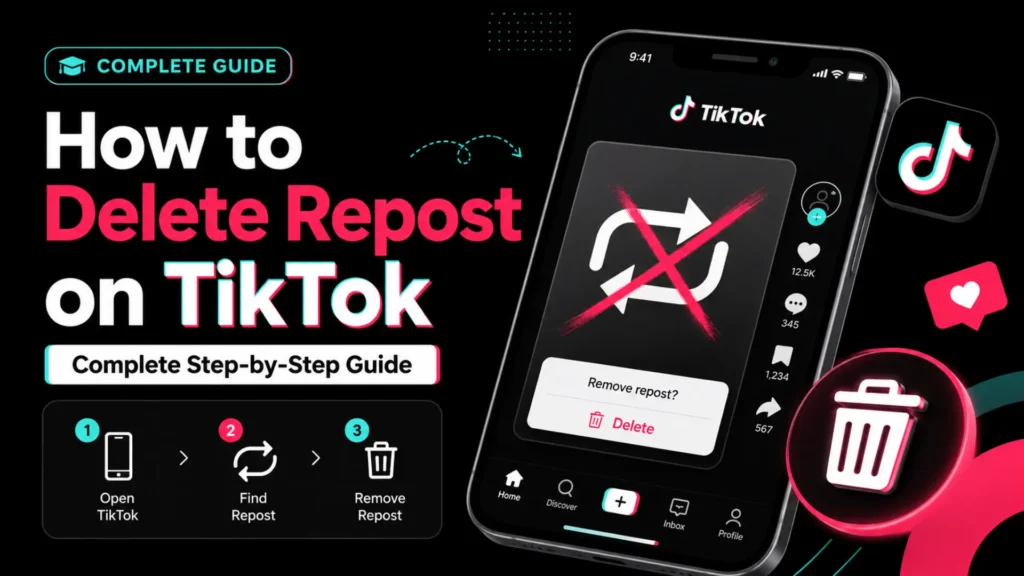
TikTok has become one of the most popular platforms for sharing short videos, and the repost feature allows users to share content from other creators with their followers. Sometimes, however, you may want to delete a repost. Whether it is for privacy, correcting a mistake, or simply cleaning up your profile, knowing how to delete a repost on TikTok is essential. Understanding how to optimize your content, like knowing the best time to post on TikTok, can also help ensure that your original content reaches the right audience.
Understanding TikTok Reposts
Before diving into how to delete a repost on tiktok, it is important to understand what reposting is and how it works. Reposting on TikTok is similar to sharing content, but it is visible on your profile under a dedicated Repost tab. Unlike liking a video, a repost shows your followers that you shared the content, making it an active form of engagement.
Reposts are useful for highlighting content you enjoy or find important. However, they can also clutter your profile or lead to sharing videos you no longer want to appear publicly. Deleting a repost ensures your TikTok profile stays organized and reflects the content you want your followers to see.
Quick Method to Delete a Repost on TikTok
The fastest way to remove a repost from your profile is through the Repost tab. Follow these steps:
- Open TikTok and go to your profile page.
- Tap the Repost tab, which is indicated by two arrows forming a circle. This tab is located next to your liked videos tab.
- Find the video you want to remove.
- Tap the Share or Send arrow on the right side of the screen.
- Select “Remove repost” to delete the video from your profile.
After performing these steps, the video will no longer appear in your reposted content, and your followers will not see it in their feed as a shared post.
Other Ways of how to Delete a TikTok Repost
There are multiple ways to delete a repost, depending on how you interact with the content:
From Your Feed
If the video you reposted appears on your For You Page or Following feed, you can remove it directly:
- Tap the Share button on the video.
- Select “Remove repost” from the options.
This method allows you to delete a repost without navigating to your profile.
Using Long-Press
While watching a video you have reposted:
- Long-press on the video screen.
- Select “Remove repost” from the menu that appears.
This method is quick and works directly from your feed or video page.
How to Delete Repost on TikTok on Different Devices
For iOS and Android
- Open TikTok and tap the Profile icon.
- Tap the Repost tab (two arrows forming a circle).
- Find the video you want to delete.
- Tap the Share arrow and select “Remove repost.”
- Alternative: From your feed, tap the Share arrow on the video and select “Remove repost.”
- Long-press method: While watching the video, press and hold, then choose “Remove repost.”
- Fun tip: When reposting, you can also add emojis to express your reaction or make the repost more engaging.
TikTok Web/Desktop Version
You can also manage reposts from TikTok Web:
- Go to TikTok Web and log in.
- Click your Profile icon.
- Open the Repost tab.
- Select the video to remove.
- Click the Share button and select “Remove repost.”
- Refresh your profile to confirm the repost is deleted.
Remember, changes made on the web sync with your mobile device, so deleted reposts will no longer appear on your profile across platforms.
Note on Mass Deletion
Currently, TikTok does not offer a native feature to remove multiple reposts at once. Each repost must be deleted individually. While some third-party tools or Chrome extensions claim to allow mass deletion, these are not officially supported by TikTok and may pose privacy or security risks. The safest method is to remove reposts manually.
Tips for Managing TikTok Reposts
Keeping your reposts organized can improve your profile appearance and control over shared content:
- Prevent accidental reposts by double-checking before tapping the repost icon.
- Use privacy settings to control who can see your activity, including reposts.
- Consider alternatives like sharing a video link, creating a duet, or bookmarking content instead of reposting.
- Regularly review your Repost tab to maintain a clean and curated profile.
Common Issues When Deleting Reposts
Some users may experience issues while removing reposts:
- The Repost button may be missing or unresponsive due to app glitches. Restarting the app or updating to the latest version usually resolves this.
- If the original video has been deleted or removed by the creator, the repost may disappear automatically.
- Temporary TikTok server issues may delay the removal of reposts. Waiting a few minutes and refreshing your profile often fixes the problem.
FAQs About How to Delete Repost On TikTok
Can I delete someone else’s repost?
No, you can only delete reposts that you shared from your own account.
Do followers get notified when a repost is deleted?
No, TikTok does not send notifications when a repost is removed.
How long does it take for a deleted repost to disappear?
Reposts are usually removed instantly from your profile and followers’ feeds, but in some cases, it may take a few minutes to update.
Can deleted reposts be recovered?
No, once a repost is deleted, it cannot be restored. You would need to repost the video again if desired.
Conclusion
Deleting a repost on TikTok is a simple but important task for managing your profile and maintaining control over the content you share. Whether using the Repost tab, your feed, or long-pressing videos, these steps make it easy to remove unwanted shared content. By following these tips and understanding the repost feature, you can ensure your TikTok profile reflects your preferences and remains well organized.
Managing reposts is part of responsible content curation on TikTok, and by regularly reviewing your reposted videos, you can keep your profile clean, privacy-friendly, and visually appealing.