If you are seeing the Facebook session expired message, the short version is that your login token has been invalidated and Facebook wants you to sign in again. In most cases it takes under five minutes to fix, and it is a security feature working correctly rather than a sign that something is broken.
This guide covers every real cause, the fixes in the order you should try them, device-specific steps for iPhone, Android, and desktop, and what to do when it happens inside Meta Business Suite or Ads Manager. One thing to flag upfront: most articles on this topic are published by companies selling proxies, and they will tell you a proxy is the answer. For the overwhelming majority of people it is not, and there is a section below explaining why.
What the Facebook Session Expired Error Actually Means
When you log in, Facebook issues your device a session token. That token proves who you are so you do not have to enter your password on every page. It has a limited lifespan and can be invalidated early.
When Facebook checks your token and finds it missing, expired, or mismatched, it ends the session and shows the message. Nothing has been deleted, nothing is lost, and your account is almost always fine. You are being asked to prove who you are again.
Where you will see it: the Facebook app, Facebook in a browser, Messenger if it is linked to a Facebook login, and inside Meta Business Suite, Ads Manager, or Creator Studio while managing pages or campaigns.
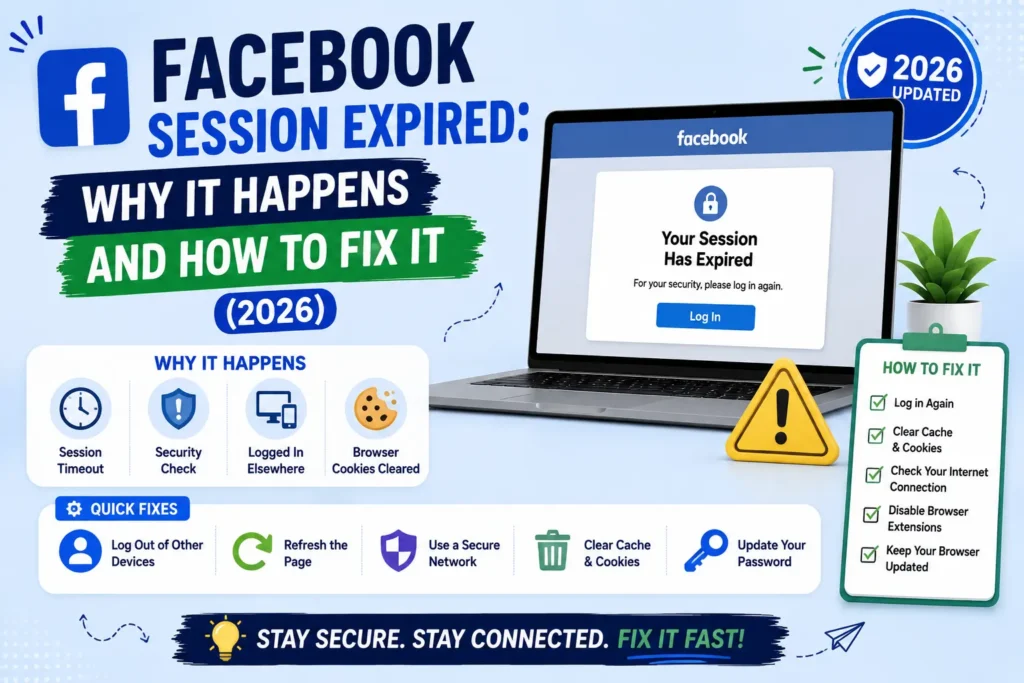
Why Facebook Ends Your Session: 7 Real Causes
Ordered by how often each is actually responsible.
1. Corrupted cache or cookies. Your browser or app stores the token locally. When that stored data is damaged or partially cleared, the token no longer matches Facebook’s records. This is the single most common fixable cause.
2. Inactivity timeout. Tokens expire after a period without interaction, and web browser sessions expire faster than app sessions. If you left a tab open for days without touching it, this is your answer.
3. A network or IP change. Switching from WiFi to mobile data, moving between networks, or a dynamic IP reassigning mid-session can all read as a connection shift. Facebook treats a sudden change as a possible security risk and ends the session.
4. Browser extensions. Ad blockers, anti-tracking tools, and privacy extensions can strip or block the cookies Facebook needs to hold a session. This is a frequent cause on desktop and almost never on mobile.
5. An outdated app or browser. Version mismatches create compatibility problems with how session tokens are handled. Facebook also updates its own security systems periodically, and older clients fall out of step.
6. A password or security setting change. Changing your password, enabling two-factor authentication, or adjusting security settings invalidates existing sessions on other devices by design. That is the feature working correctly.
7. Genuine security detection. Logging in from an unfamiliar device or location, or several people using one account from different IPs, triggers Facebook’s protective logout. If this is happening repeatedly with no technical explanation, treat it as a signal worth investigating.
How to Fix Facebook Session Expired in Under Five Minutes
Work down this list in order. The first three resolve most cases.
Step 1: Refresh and log back in. Reload the page or restart the app, then sign in with your credentials. This forces Facebook to issue a fresh token and resolves most token mismatches immediately. Do this before anything else.
Step 2: Clear cache and cookies. This removes the corrupted stored data causing the mismatch. Be aware it signs you out of most other sites too, so have your passwords available.
Step 3: Test in an incognito or private window. Private windows run without extensions by default. If Facebook works normally there, an extension is your culprit and you have diagnosed it in seconds.
Step 4: Disable extensions one at a time. Turn them all off, confirm Facebook works, then re-enable them individually and reload after each. When the error returns, you have found it. Ad blockers and privacy tools are the usual suspects.
Step 5: Turn off your VPN or proxy temporarily. Free VPNs in particular rotate your IP frequently, which Facebook reads as a suspicious connection shift. If disabling it fixes the problem, switch to a service offering a static IP or connect to a server near your actual location.
Step 6: Update the app or browser. Install any pending updates and enable automatic updates so this stops recurring.
Step 7: Restart your device. This clears background processes and temporary memory that may be conflicting. It sounds trivial and it genuinely resolves a share of cases.
Step 8: Check your active sessions. Go to Settings and Privacy, then Settings, then Security and Login, then Where You’re Logged In. Log out of any device you no longer use. Meta’s Facebook Help Center has current instructions if the menu paths have shifted.
Device-Specific Fixes
The steps differ meaningfully by platform, and one of these differences trips people up constantly.
iPhone and iPad
iOS does not let you clear an individual app’s cache. There is no button for it, which is why generic guides telling you to clear the Facebook app cache on iPhone are wrong.
Your options are: offload the app through Settings, then General, then iPhone Storage, then Facebook, then Offload App, which removes the app but keeps documents and data. Or delete and reinstall the app entirely, which clears everything including the stored token. Reinstalling is the reliable fix on iOS.
Also check that background app refresh is enabled for Facebook, since a suspended app can lose its session state.
Android
Android does allow direct cache clearing. Go to Settings, then Apps, then Manage Apps on some devices, then Facebook, then Storage, then Clear Cache.
Try Clear Cache first. If the error persists, Clear Data, which resets the app completely and requires you to log in again. Clearing data deletes your session token deliberately, which is the point.
Desktop browsers
Clear cookies and cached files for facebook.com specifically rather than everything, if your browser allows site-level clearing. Chrome, Edge, Firefox, and Safari all support this under site settings or privacy settings.
Then test in a private window before touching extensions, since that isolates the variable in one step. Browser sessions expire faster than app sessions by design, so if you only see this on desktop, that is often the whole explanation.
Fixing Session Expired in Meta Business Suite and Ads Manager
This is where the error causes real problems, because being logged out mid-campaign is a business interruption rather than an inconvenience.
Check your role has not changed. If someone removed or altered your permissions on a business asset, you can be logged out of that context while your personal account stays fine. Confirm your access under Business Settings, then People.
Two-factor authentication is often mandatory here. Meta requires 2FA for many business accounts, and an incomplete or lapsed 2FA setup causes repeated logouts specifically in Business Suite. Complete the setup properly and store your recovery codes.
Avoid switching between multiple business accounts in one browser. Session conflicts between business assets are a common cause of this in agency contexts. Use separate browser profiles for separate clients rather than logging in and out repeatedly.
Reduce how often you need to log in at all. Much of the routine work people do inside Business Suite, particularly scheduling, can be handled elsewhere. A third-party scheduler holds its own authenticated connection through the API, so a browser session expiring does not interrupt your posting calendar. The trade-offs between social media marketing tools and their pricing models are worth understanding before choosing one.
If it happens during ad management specifically, complete any pending account verification. Unverified business accounts and unresolved payment issues both trigger forced re-authentication, and the error message does not tell you that is the reason.
When Session Expired Means Your Account May Be Compromised
Most of the time this error is routine. Occasionally it is not.
Treat it as a security signal if: it happens repeatedly with no technical explanation, it happens immediately after clicking a link in a message or email, or you notice posts, messages, or ad spend you did not authorise.
What to do, in this order:
- Go to Settings, then Security and Login, then Where You’re Logged In. Review every device and location listed. Anything unfamiliar, a device you do not own or a city you have not visited, log out using the three-dot menu.
- Change your password immediately, and use one you have not used elsewhere.
- Enable two-factor authentication if it is not already on. This is the single most effective protection against unauthorised access.
- Check Settings, then Apps and Websites, and remove anything you do not recognise or no longer use. Third-party apps with lingering permissions are a common entry point.
- If you manage business assets, check Business Settings for people or partners who should not have access.
Searches combining this error with the word hacked usually have an innocent explanation, since inactivity, a password change, or a network switch produce identical symptoms. Run the checks anyway. They take four minutes.
Why You Probably Do Not Need a Proxy
If you have searched this problem already, you have almost certainly been told to buy a proxy. Here is the honest position.
Most of those articles are published by proxy companies. Check the domain on the results you have been reading. The recommendation is the product, and the advice is written to sell it.
A proxy does not fix any of the seven causes above. Corrupted cache, expired tokens, extensions, outdated apps, and password changes are all unaffected by routing your traffic differently.
It can make things worse. Facebook’s policies restrict proxy use for multi-account management, and unusual routing is itself a pattern its security systems flag. Adding a proxy to solve a security-triggered logout can trigger more of them.
The one narrow case where IP stability genuinely matters: you are running automation at volume, managing many accounts programmatically, or scraping. That is a specialist technical scenario with its own policy risks, and it is not what is happening if you got logged out of Facebook on your phone.
If your IP is the problem, the fix is usually simpler and free. Stop switching between WiFi and mobile data mid-session, turn off a free VPN that rotates IPs, or move closer to your router. That resolves it for the vast majority of people.
How to Stop Facebook Session Expired From Happening Again
Six habits that prevent recurrence.
- Enable automatic app and browser updates, so version mismatches never build up.
- Turn on two-factor authentication. Counterintuitively this reduces forced logouts, because Facebook trusts a verified session more readily than an unverified one.
- Review Where You’re Logged In monthly and remove devices you no longer use. Old sessions on lost or replaced phones cause conflicts.
- Keep extensions minimal on the browser you use for Facebook, or use a dedicated browser profile with none.
- Do not share account credentials. Several people logging into one account from different IPs will reliably cause session conflicts. Use proper roles in Business Manager instead.
- Use a stable connection for business work. Managing ads over a public WiFi network you keep dropping off is asking for repeated logouts.
What We Tell Clients at Leemjaz
Patterns from managing Facebook pages and ad accounts across clients.
It is almost never the account. When a client messages us in a panic about being logged out, the cause is a browser extension or a stale cache roughly nine times out of ten. We ask them to open Facebook in a private window before doing anything else, because that single test separates a five-minute fix from a real problem.
Separate browser profiles solved this for us permanently. Managing several client business accounts in one browser produced constant session conflicts. Giving each client its own Chrome profile, with its own cookies and its own extension set, ended it. It costs nothing and takes ten minutes to set up.
Two-factor authentication is not optional for business assets. Every client we onboard gets 2FA enabled with recovery codes stored somewhere the whole team can reach. We have watched an account get locked out at exactly the wrong moment because one person held the only recovery method and was on holiday.
Repeated logouts during ad management usually mean something unresolved. Unverified business details, a failed payment method, or a permissions change on an asset. The error message says session expired and the actual cause is sitting in Business Settings waiting to be fixed. This is one of the first things we check when taking over an account as part of our social media marketing services.
We do not use proxies and we do not recommend them. For legitimate business page and ad management they solve nothing and add policy risk. Proper roles in Business Manager are the supported way to give multiple people access, and it is the one Meta will not penalise you for.
Facebook Session Expired FAQs
Why does Facebook keep saying session expired?
Usually corrupted cache or cookies, which is the most common fixable cause. Other frequent triggers are inactivity timeouts, a network or IP change, a browser extension blocking session cookies, or an outdated app. If it repeats with no technical explanation, check your active sessions for unfamiliar devices.
Does the Facebook session expired error mean I have been hacked?
Almost never. Inactivity, a password change, and a network switch all produce the same message. That said, check Settings, then Security and Login, then Where You’re Logged In for unfamiliar devices, and enable two-factor authentication if it is off. The check takes a few minutes and rules it out.
How do I fix Facebook session expired on iPhone?
iOS does not allow clearing an individual app’s cache, so the reliable fix is to offload or delete and reinstall the Facebook app through Settings, then General, then iPhone Storage. Log back in afterwards. Generic advice telling you to clear the Facebook app cache on iPhone does not apply, because that option does not exist.
Why does Facebook log me out on my browser but not my phone?
Web browser session tokens expire faster than app tokens by design. Browsers are also where extensions, cookie-blocking privacy tools, and cache corruption interfere with session handling, none of which affect the mobile app. Testing Facebook in an incognito window will usually confirm whether an extension is responsible.
How do I stop session expired errors in Meta Business Suite?
Complete two-factor authentication, since Meta requires it for many business accounts and an incomplete setup causes repeated logouts. Confirm your role has not been changed under Business Settings, then People, resolve any pending business verification or payment issues, and use separate browser profiles if you manage multiple business accounts.
Do I need a proxy or VPN to fix the Facebook session expired error?
No. Proxies do not address any of the common causes, and Facebook restricts proxy use for multi-account management, so adding one can trigger more security logouts rather than fewer. Most articles recommending proxies are published by companies that sell them. If a rotating free VPN is causing IP changes, turning it off is the fix.
Conclusion
The Facebook session expired error is almost always your login token being invalidated by something ordinary: a stale cache, an extension, a network switch, or simple inactivity. Refreshing and logging back in, clearing cookies, and testing in a private window resolve the large majority of cases in under five minutes.If it keeps returning, check your active sessions and enable two-factor authentication before assuming anything is wrong with your account. And if a page tells you the solution is a proxy, check who published it before you get out your card.