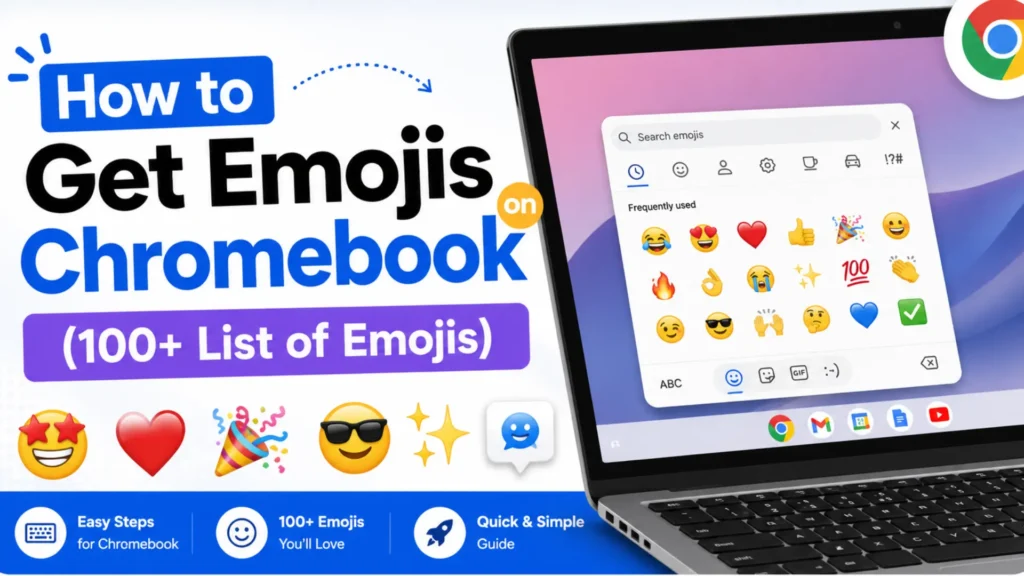
If you are trying to figure out how to get emojis on a Chromebook, the good news is that emojis are already built into your device and take just seconds to access. Chromebooks run on ChromeOS, which includes a native emoji picker that works across websites, apps, emails, and even platforms like WordPress. With a simple keyboard shortcut, you can instantly open the emoji panel, search for specific emojis, and insert them anywhere you type. In this complete guide, you will learn the fastest way to use emojis on a Chromebook, alternative methods for touchscreen devices, and practical troubleshooting tips to ensure everything works smoothly.
The Fastest Way to Get Emojis on Chromebook
Keyboard Shortcut (Best & Fastest)
- Click inside any text field (email, chat, document).
- Press Search (Launcher) + Shift + Space.
- Select your emoji from the panel.
The emoji picker includes:
- A search bar (type “smile,” “fire,” etc.)
- Categories (faces, animals, food, symbols)
- Recently used emojis
This works in:
- Google Docs
- Email
- Social media
- Messaging apps
- Most websites
How to Open the Emoji Picker on Chromebook
There are three main ways to get emojis on a Chromebook:
1️. Keyboard Shortcut (Recommended)
- Fastest method
- Works everywhere
- Best for daily use
2️. Right-Click Method
- Click inside a text box.
- Two-finger tap on the touchpad (or right-click).
- Click Emoji.
Perfect if you don’t want to memorize shortcuts.
3️. On-Screen Keyboard (Touchscreen Users)
- Best for tablet mode or younger users
- Tap the emoji icon on the virtual keyboard
For most users, the keyboard shortcut is the quickest and most efficient.
How to Get Emojis on Chromebook Using the Keyboard Shortcut
Let’s break it down clearly.
Step 1: Click Inside a Text Field
Open:
- A Google Doc
- An email draft
- A chat window
- Any website form
Apps like Gmail and Google Docs fully support emojis.
Step 2: Press the Shortcut
Press:
Search (Launcher) + Shift + Space
The Search key usually has a magnifying glass icon.
Step 3: Choose Your Emoji
- Scroll categories
- Use the search bar
- Click to insert
You can also navigate using arrow keys for faster selection.
How to Get Emojis on Chromebook Without a Shortcut
If the shortcut feels inconvenient, use this method:
- Click inside the text field.
- Right-click (or two-finger tap).
- Select Emoji.
The emoji panel will open immediately.
This method is great if:
- You use an external keyboard.
- You forgot the shortcut.
- You prefer mouse navigation.
How to Get Emojis on Chromebook in Tablet Mode
If you have a 2-in-1 Chromebook or touchscreen device:
Enable On-Screen Keyboard
- Open Settings
- Go to Accessibility
- Turn on On-screen keyboard
Now:
- Tap inside a text field.
- The virtual keyboard appears.
- Tap the emoji icon.
- Choose your emoji.
This method is especially useful for:
- Students
- Touch-first users
- Tablet mode typing
Emoji Unicode List (100 Emojis with Meanings)
😊 Face Emojis
| # | Emoji | Unicode | Meaning |
| 1 | 😀 | U+1F600 | Grinning face |
| 2 | 😃 | U+1F603 | Big smile |
| 3 | 😄 | U+1F604 | Happy smile |
| 4 | 😁 | U+1F601 | Beaming grin |
| 5 | 😆 | U+1F606 | Laughing |
| 6 | 😅 | U+1F605 | Nervous laugh |
| 7 | 😂 | U+1F602 | Crying laughter |
| 8 | 🤣 | U+1F923 | Rolling laughing |
| 9 | 😊 | U+1F60A | Warm smile |
| 10 | 😇 | U+1F607 | Innocent |
| 11 | 😉 | U+1F609 | Wink |
| 12 | 😍 | U+1F60D | In love |
| 13 | 🥰 | U+1F970 | Affection |
| 14 | 😘 | U+1F618 | Blowing kiss |
| 15 | 😎 | U+1F60E | Cool |
| 16 | 🤔 | U+1F914 | Thinking |
| 17 | 🤨 | U+1F928 | Skeptical |
| 18 | 😐 | U+1F610 | Neutral |
| 19 | 😑 | U+1F611 | Expressionless |
| 20 | 🙄 | U+1F644 | Eye roll |
| 21 | 😒 | U+1F612 | Unimpressed |
| 22 | 😏 | U+1F60F | Smirk |
| 23 | 😔 | U+1F614 | Sad |
| 24 | 😢 | U+1F622 | Crying |
| 25 | 😭 | U+1F62D | Loud crying |
| 26 | 😤 | U+1F624 | Frustrated |
| 27 | 😠 | U+1F620 | Angry |
| 28 | 😡 | U+1F621 | Very angry |
| 29 | 🤬 | U+1F92C | Swearing |
| 30 | 😱 | U+1F631 | Screaming |
| 31 | 😳 | U+1F633 | Embarrassed |
| 32 | 😬 | U+1F62C | Awkward |
| 33 | 🤯 | U+1F92F | Mind blown |
| 34 | 😴 | U+1F634 | Sleeping |
| 35 | 🤤 | U+1F924 | Drooling |
| 36 | 😷 | U+1F637 | Sick |
| 37 | 🤒 | U+1F912 | Fever |
| 38 | 🤕 | U+1F915 | Injured |
| 39 | 🤢 | U+1F922 | Nauseous |
| 40 | 🤮 | U+1F92E | Vomiting |
| 41 | 🥶 | U+1F976 | Freezing |
| 42 | 🥵 | U+1F975 | Overheated |
| 43 | 🥺 | U+1F97A | Pleading |
| 44 | 😇 | U+1F607 | Angelic |
| 45 | 🤡 | U+1F921 | Clown |
| 46 | 💀 | U+1F480 | Skull |
| 47 | 👻 | U+1F47B | Ghost |
| 48 | 🤖 | U+1F916 | Robot |
| 49 | 🎃 | U+1F383 | Pumpkin |
| 50 | 💩 | U+1F4A9 | Poop |
❤️ Heart Emojis
| # | Emoji | Unicode | Meaning |
| 51 | ❤️ | U+2764 U+FE0F | Red love heart |
| 52 | 🧡 | U+1F9E1 | Orange heart |
| 53 | 💛 | U+1F49B | Yellow heart |
| 54 | 💚 | U+1F49A | Green heart |
| 55 | 💙 | U+1F499 | Blue heart |
| 56 | 💜 | U+1F49C | Purple heart |
| 57 | 🖤 | U+1F5A4 | Black heart |
| 58 | 🤍 | U+1F90D | White heart |
| 59 | 🤎 | U+1F90E | Brown heart |
| 60 | 💔 | U+1F494 | Broken heart |
| 61 | ❣️ | U+2763 U+FE0F | Heart exclamation |
| 62 | 💕 | U+1F495 | Two hearts |
| 63 | 💞 | U+1F49E | Revolving hearts |
| 64 | 💓 | U+1F493 | Beating heart |
| 65 | 💗 | U+1F497 | Growing heart |
| 66 | 💖 | U+1F496 | Sparkling heart |
| 67 | 💘 | U+1F498 | Heart with arrow |
| 68 | 💝 | U+1F49D | Heart with ribbon |
| 69 | 💟 | U+1F49F | Heart decoration |
| 70 | 🫶 | U+1FAF6 | Heart hands |
👍 Hand & Gesture Emojis
| # | Emoji | Unicode | Meaning |
| 71 | 👍 | U+1F44D | Thumbs up |
| 72 | 👎 | U+1F44E | Thumbs down |
| 73 | 👏 | U+1F44F | Clapping |
| 74 | 🙌 | U+1F64C | Celebration |
| 75 | 🤝 | U+1F91D | Handshake |
| 76 | ✌️ | U+270C U+FE0F | Peace |
| 77 | 🤞 | U+1F91E | Fingers crossed |
| 78 | 👌 | U+1F44C | OK |
| 79 | 🤟 | U+1F91F | Love sign |
| 80 | 🤘 | U+1F918 | Rock on |
| 81 | 👊 | U+1F44A | Fist |
| 82 | ✊ | U+270A | Raised fist |
| 83 | 🤚 | U+1F91A | Raised back hand |
| 84 | 🖐 | U+1F590 | Raised hand |
| 85 | 👋 | U+1F44B | Waving |
⭐ Symbols & Popular Emojis
| # | Emoji | Unicode | Meaning |
| 86 | 🔥 | U+1F525 | Fire, trending |
| 87 | ⭐ | U+2B50 | Star |
| 88 | 🌟 | U+1F31F | Glowing star |
| 89 | 💯 | U+1F4AF | 100 percent |
| 90 | ✔️ | U+2714 U+FE0F | Check mark |
| 91 | ❌ | U+274C | Cross mark |
| 92 | ⚠️ | U+26A0 U+FE0F | Warning |
| 93 | 🎉 | U+1F389 | Celebration |
| 94 | 🏆 | U+1F3C6 | Trophy |
| 95 | 🚀 | U+1F680 | Rocket |
| 96 | 📌 | U+1F4CC | Pin |
| 97 | 📢 | U+1F4E2 | Announcement |
| 98 | 🔒 | U+1F512 | Locked |
| 99 | 🔓 | U+1F513 | Unlocked |
| 100 | 📱 | U+1F4F1 | Mobile phone |
How to Fix Emoji Keyboard on Chromebook (If It’s Not Working)
If emojis are not showing, try these solutions:
1️. Restart Your Chromebook
Sometimes a simple restart fixes it.
2️. Update ChromeOS
- Open Settings
- Click About ChromeOS
- Select Check for updates
An outdated system may cause the emoji picker not to appear.
3️. Check Language & Input Settings
- Go to Settings → Languages and input
- Confirm your keyboard layout is correct
4️. School or Work Chromebook?
Managed devices may restrict certain features. In that case, contact your administrator.
How to Use Kaomoji, Symbols & Special Characters
The Chromebook emoji panel isn’t just emojis.
It also includes:
- Kaomoji (Japanese-style emoticons like ¯\(ツ)/¯)
- Symbols (currency, arrows, math signs)
To access them:
- Open the emoji picker.
- Switch tabs at the top.
- Choose Kaomoji or Symbols.
This is useful for:
- Professional documents
- Presentations
- Casual chats
How Emojis Work in Different Apps
Emojis work almost everywhere on Chromebook, including:
- Google Docs
- Gmail
- Messaging platforms
- Social media websites
However, keep in mind:
- Emoji style may look slightly different depending on the platform.
- Professional documents may not always require emojis.
- Some older apps may display emojis differently.
Can You Change Chromebook Emojis to iPhone Style?
Many users ask if they can switch to iPhone emoji style.
Short answer: No.
Emoji design is controlled by ChromeOS. You cannot natively change the emoji style.
Workarounds:
- Copy emojis from websites
- Use image-based emojis in chats
- Use messaging apps that render their own emoji style
Chromebook Emoji Shortcut Cheat Sheet
| Action | How to Do It |
| Open Emoji Picker | Search + Shift + Space |
| Open via Mouse | Right-click → Emoji |
| Use Touchscreen | Enable On-screen keyboard → Tap emoji icon |
| Fix Issues | Restart or Update ChromeOS |
Frequently Asked Questions
What does Ctrl + Alt + Z do on a Chromebook?
On a Chromebook, Ctrl + Alt + Z turns ChromeVox on or off.
ChromeVox is the built-in screen reader in ChromeOS. It reads aloud text, buttons, and on-screen elements to help users with visual impairments navigate their device.
When you press Ctrl + Alt + Z:
- ChromeVox activates and begins giving voice feedback.
- It announces what is selected or focused.
- Keyboard navigation becomes audio-assisted.
To turn it off, press Ctrl + Alt + Z again.
This shortcut is part of Chromebook’s accessibility features and does not open the emoji panel. For emojis, use:
Search (Launcher) + Shift + Space
How to enable emojis in Chrome?
If you’re using a Chromebook, emojis are already built into ChromeOS, no extension required.
Here’s how to enable or access them:
Method 1: Keyboard Shortcut (Recommended)
- Click inside any text field.
- Press Search + Shift + Space.
- The emoji picker will appear.
Method 2: Right-Click Menu
- Click inside a text field.
- Right-click (or two-finger tap).
- Select Emoji.
If emojis are not appearing:
- Go to Settings → About ChromeOS → Check for updates
- Restart your Chromebook
- Make sure your keyboard language/input settings are correct
If you’re asking about Google Chrome browser on Windows or Mac:
- Right-click inside a text field and look for emoji options (varies by system).
- On Windows: press Windows + . (period)
- On Mac: press Control + Command + Space
But on a Chromebook, emojis are native and always available through ChromeOS.
Do Chromebooks have emojis?
Yes, all modern Chromebooks have built-in emoji support.
Because Chromebooks run on ChromeOS, the emoji picker is integrated system-wide. You can use emojis in:
- Google Docs
- Gmail
- Social media platforms
- Chat apps
- Online forms
- Android apps (on supported devices)
You do not need:
- Browser extensions
- Third-party apps
- Emoji keyboard downloads
Just use the built-in shortcut:
Search + Shift + Space
The emoji panel also includes:
- Kaomoji (¯\(ツ)/¯)
- Symbols (currency, arrows, math signs)
Do emojis work offline?
Yes. The emoji picker works offline. However, some web apps require the internet to send messages.
Conclusion: The Easiest Way to Get Emojis on Chromebook
Getting emojis on a Chromebook is simple and works seamlessly across websites like WordPress. Just press Search + Shift + Space inside any text field to open the built-in emoji picker in ChromeOS, then choose the emoji you want to insert. You can use emojis in blog posts, comments, emails, documents, and social media without installing any plugins or extensions. The feature is already integrated into your Chromebook and works system wide. Once you remember the shortcut, adding emojis anywhere you write becomes quick, smooth, and effortless.