Discord has become one of the leading communication platforms for gamers, communities, and professionals alike. One of the standout features that makes Discord unique is the ability to set a personalized Discord status. This simple feature allows you to communicate your availability, mood, and activities to others in real-time, helping you engage more effectively within your community or server. Whether you’re online, idle, away, or busy, your status provides an instant snapshot of your current state, helping others know when it’s the right time to interact with you.
But there’s more to Discord status than just a basic indicator of availability. With the option to set a custom status, you can express yourself creatively, share what you’re working on, or let others know when you’re focused or taking a break. In this guide, we’ll explore the different types of Discord status, give you 50+ creative status ideas, and explain how you can easily customize your status to make your online presence truly reflect who you are. Whether you want to keep it simple or go all out with something quirky, there’s a status for every mood and moment.
What is Discord Status? An Overview of its Purpose and Functionality
Discord status refers to the feature that displays your availability and current activity to other users. This allows people to know whether you’re actively participating in chats, away from your computer, or working in a focused environment. Statuses can also be customized to reflect personal messages, such as Streaming or Playing a Game.
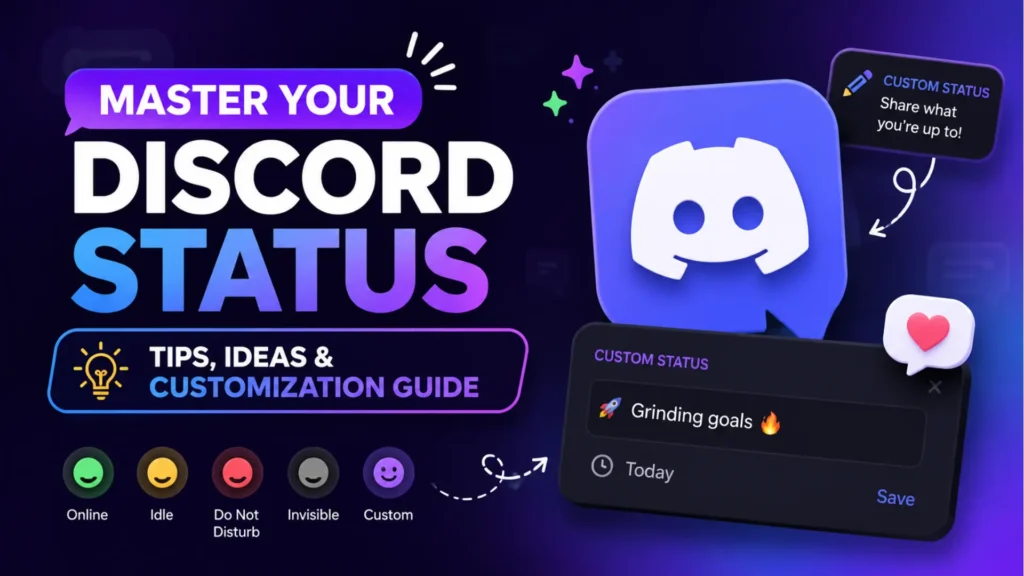
Discord provides a few pre-set status options like Online, Idle, Do Not Disturb, and Invisible, but the most unique option is the custom status, where you can add personalized messages. This status helps make your online presence more informative and allows you to tailor your interactions.
Types of Discord Status: Understanding the Different Options
Online Status
- What it means: Your status is green with a dot, indicating that you are available and actively online.
- When to use it: When you’re actively using Discord and ready to chat with others.
Idle Status
- What it means: Yellow status with a dot, showing you’re inactive but still logged in.
- When to use it: When you’re away for a brief time, or your status should reflect you’re not actively using Discord.
Do Not Disturb (DND) Status
- What it means: Red dot that blocks notifications.
- When to use it: When you’re busy, focusing on something important, or don’t want to be disturbed by messages.
Invisible Status
- What it means: You appear offline to others but can still access Discord and use all its features.
- When to use it: When you want to be on Discord but avoid attention or messages.
Custom Status
- What it means: Custom text you can set to show what you’re currently doing or feeling.
- When to use it: When you want to share something specific, like “Playing Fortnite” or “Working on a project.”
How to Set Your Discord Status: A Step-by-Step Guide
Changing Status on Desktop
- Open Discord on your desktop or web browser.
- Click on your profile icon in the bottom left corner.
- Choose the status you want, or click “Set a Custom Status” to create a personalized message.
- You can also add an emoji or set a timer for your custom status to disappear.
Changing Status on Mobile
- Open the Discord app on your mobile device (iOS/Android).
- Tap your profile icon in the bottom right corner.
- Select “Set Status” and either choose from the preset options or tap “Custom” to create a message.
- You can also use emojis and set a time limit for your custom status.
Key Differences Between Discord Status Options: Which One Should You Choose?
Online vs. Idle Status
- Online: Green dot indicating you are available to chat.
- Idle: Yellow dot, showing you are logged in but inactive.
- Difference: Idle is for when you’re away from your keyboard but don’t want to be seen as fully offline.
Do Not Disturb vs. Invisible
- Do Not Disturb: Red dot, which silences notifications, indicating you’re busy or don’t want to be interrupted.
- Invisible: Appears offline to others, but you can still use Discord without notifications or messages.
- Difference: Invisible is for complete privacy, while DND is for when you want to be present but not disturbed.
Custom Status vs. Default Status
- Custom Status: Text you can personalize, showing your activity or mood.
- Default Status: Simple statuses like Online, Idle, DND, and Invisible.
- Difference: Custom status allows for more creativity and personal messaging.
50+ Creative Discord Status Ideas
Here are 50+ status ideas for you to personalize your Discord presence:
- Playing [Game Name]
- Streaming on Twitch!
- Currently AFK, be back soon
- In a meeting, will reply later
- Busy working on [Project Name]
- Binge-watching [Show Name]
- Just chilling with music
- On a break! Back in 5
- Getting some coffee
- Playing Minecraft – Block by Block
- Exploring new worlds in [Game Name]
- Currently lost in [Game Name]
- Gaming but also reading the chat
- Building something epic in [Game Name]
- Hunting for new achievements
- Grinding XP in [Game Name]
- Going to bed soon, leave a message
- Listening to [Music or Playlist Name]
- Working on my fitness
- Not responding – working
- Chasing after my high score
- Editing a YouTube video
- Watching [Streamer’s Name] on Twitch
- Need more coffee
- I’ll be back in a minute
- Daydreaming…
- Almost finished with this task
- Mentally preparing for tomorrow
- Programming something cool
- Away from keyboard – send memes
- Gonna be busy all day
- In the mood for memes
- Now is the time for naps
- Out for a walk, will reply soon
- New high score in [Game Name]
- Playing with mods
- Currently modding my game
- Trying to fix my broken PC
- Feeling productive
- Listening to podcasts
- Studying – don’t disturb
- Getting my 8 hours of sleep
- In a voice chat – come join me!
- Can’t talk, too many meetings
- Gaming but lurking
- Busy crafting in [Game Name]
- Plotting my next victory
- Online, but mentally offline
- Coding away… again
- Just woke up, give me a minute
- Too tired to talk, but still here
Discord Downdetector: What to Do When Discord is Down
Occasionally, Discord may experience outages or downtime, disrupting your ability to use the service effectively. If you’re having trouble connecting to Discord, checking Discord Downdetector can help you understand if the problem is on your end or if Discord is experiencing a widespread outage.
- How to use Downdetector: Visit downdetector.com and search for “Discord” to see if there are any ongoing issues or server outages.
- What to do when Discord is down: If Discord is down, it’s usually a server-side issue, and there’s nothing you can do except wait for Discord to fix it. In the meantime, you can keep an eye on Discord’s official Twitter page or the Downdetector site for updates.
Discord Status Icons: What Do They Mean?
Discord uses various status icons to indicate different user statuses, such as:
- Green Dot: Online
- Yellow Dot: Idle
- Red Dot: Do Not Disturb (DND)
- Invisible Icon: Appears offline to others, but you can still interact on Discord.
These icons help you quickly gauge the availability of your friends or server members without having to ask.
Discord Status Template: How to Create Your Own Custom Status
To create a Discord status template, follow these simple steps:
- Open Discord and click on your profile picture.
- Select “Set a Custom Status.”
- Write a message that reflects what you’re currently doing, such as:
- “Playing [Game Name]”
- “Working on [Project Name]”
- “Watching Netflix”
- “Playing [Game Name]”
- Add emojis for fun, and if necessary, set a time for it to expire.
You can customize the text and emojis to fit any theme or mood you wish to display!
Create a Discord Bio with Our Generator Tool
Looking for a unique Discord bio to match your status? Try out our Discord Bio Generator tool to create a creative and personalized bio for your profile! This tool will help you stand out and fully customize your Discord identity, complementing your custom status and giving you a professional or playful appearance.
Common Discord Status Problems and How to Fix Them
Status Not Updating or Showing Correctly
- Solution: Try logging out and logging back in, or restart your app.
Custom Status Not Appearing
- Solution: Check if you’ve exceeded the character limit or ensure your status is active and hasn’t expired.
Discord is Down
- Solution: Visit Discord Downdetector or the Discord Twitter account for outage updates.
Conclusion: Mastering Discord Status for Better Online Interaction
By understanding and customizing your Discord status, you can enhance your communication on the platform, control your interactions, and even show off your personality. With a wide range of status options, including the ability to create custom messages, Discord status helps others understand what you’re up to, when you’re available, and how you want to be approached.
Frequently Asked Questions (FAQ)
- How do I change my Discord status on mobile?
Go to your profile settings, tap “Set Status,” and select your preferred status or create a custom message. - Can I hide my Discord status from certain people?
Discord doesn’t allow you to hide your status from specific people, but you can set your status to “Invisible” for full privacy. - Why does my custom status not appear in some servers?
Some servers may have restrictions on custom statuses, or there could be a sync issue. Try logging out and back in or check server settings. - How can I reset my Discord status if it’s stuck?
If your status is stuck, try restarting Discord or clearing the app’s cache. Ensure you’re using the latest version of the app.
Essential Discord Customization Ideas: Roles, Channels, and Bios
Discord Role Ideas
Looking for Discord role ideas? Roles like Admin, Moderator, and Member can help you manage your server effectively and create a more organized environment.
Discord Channel Ideas
Need Discord channel ideas? Consider setting up channels for general chat, voice calls, or specific topics to keep your server structured and engaging.
Discord Bio Templates
For a standout profile, try using Discord bio templates. These creative templates can help you craft a personalized bio that matches your personality or server theme.
Discord Bio Generator Tool
Don’t forget to check out our Discord Bio Generator tool to easily create the perfect bio for your profile!