A Google reviews search by name is possible in three quick ways. Type the business name into Google Search and open the reviews panel, search the business in Google Maps and use the in-built keyword bar inside the Reviews tab, or click on a reviewer’s name to open their public profile and read every review they have ever posted. Each route is free and takes under a minute.
If you have ever tried to look up customer feedback for a specific shop, dentist, hotel, or even a person who reviewed your business, you already know that Google does not offer one neat button labeled “search reviews by name.” That does not mean it is impossible. With the right steps, a Google reviews search by name becomes a fast, reliable habit that helps consumers pick the right business and helps owners track their online reputation in real time.
In this guide, you will learn every working method to find Google reviews by name (business name, reviewer name, or even a name mentioned inside a review), the limits to be aware of, and how to use these reviews to make smarter buying decisions or strengthen your local SEO. Let us get into it.
Why Search Google Reviews by Name in the First Place?
Google reviews shape decisions before a customer ever lands on your website. According to Bright Local’s Local Consumer Review Survey, the vast majority of Americans read online reviews for local businesses, and Google sits at the top of the list of trusted review platforms. Knowing how to filter through that pile of feedback by name gives you a clear edge.
Here is why a name-based search matters:
- For consumers: You can verify a business, compare two similar shops, check whether a specific employee got mentioned, or read every review left by a particular Google user before trusting their opinion.
- For business owners: You can monitor brand mentions, track competitor feedback, spot fake reviews, and respond to negative comments before they snowball.
- For job seekers and clients: Reviews often reveal a manager’s name, the work culture, or the responsiveness of a service provider, which is gold during research.
- For local SEO: Google treats review quantity, recency, and engagement as ranking signals inside the local pack. The faster you find feedback by name, the faster you can act on it.
In short, learning the proper way to search Google reviews by name turns a noisy review feed into a focused decision-making tool.
Method 1: Search Google Reviews by Business Name (Google Search)
This is the fastest entry point and works on both desktop and mobile.
Step-by-step process:
- Open google.com.
- Type the exact business name. If it is a chain, add the city or area (for example, “Starbucks Times Square New York” or “Joe’s Pizza Brooklyn”).
- Look at the right side of the search results on desktop, or scroll a bit on mobile. You will see the Google Business Profile knowledge panel with the average star rating and review count.
- Click on the review count (it might say something like “1,847 Google reviews”).
- A pop-up review window opens. From here you can sort reviews by Most relevant, Newest, Highest rating, or Lowest rating.
What you can see in this panel:
- Average star rating out of 5
- Total number of reviews
- Photos uploaded by customers
- Reviewer names and profile pictures
- Owner responses
- Date posted
This is the easiest way to do a quick Google reviews search by name when you only need a snapshot of how a business is performing online.
Method 2: Google Reviews Search by Name Inside Google Maps
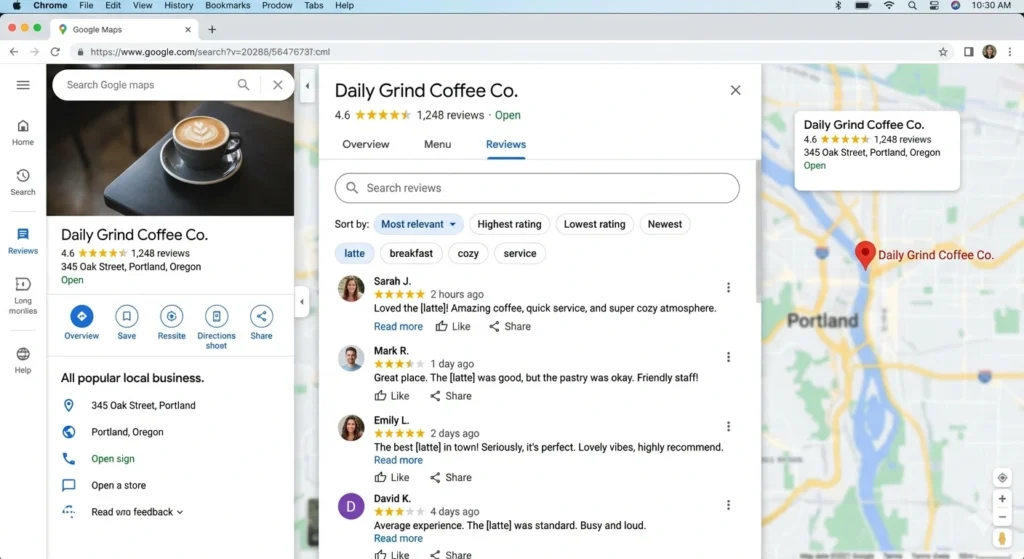
Google Maps gives you the most control because it has an actual search bar inside the Reviews tab. Many people miss this feature entirely.
Here is how to use it:
- Open Google Maps on your browser or mobile app.
- Type the business name in the search bar and pick the correct listing. Always double-check the address to avoid duplicate listings with similar names.
- Click on the Reviews tab.
- Scroll a little until you see a small search box that says “Search reviews.”
- Type a name, a keyword, or a phrase. Google will instantly filter every review that contains that word.
You can search for:
- A first name or last name (helpful for spotting reviews about a specific staff member like “Sarah” or “Mike”)
- A product or service (“haircut”, “delivery”, “pasta”)
- A complaint keyword (“rude”, “slow”, “refund”)
- A positive trigger (“amazing”, “best”, “recommend”)
This approach is one of the most accurate ways to do a Google reviews search by name on a single business listing.
Method 3: Find Every Review Written by a Specific Person
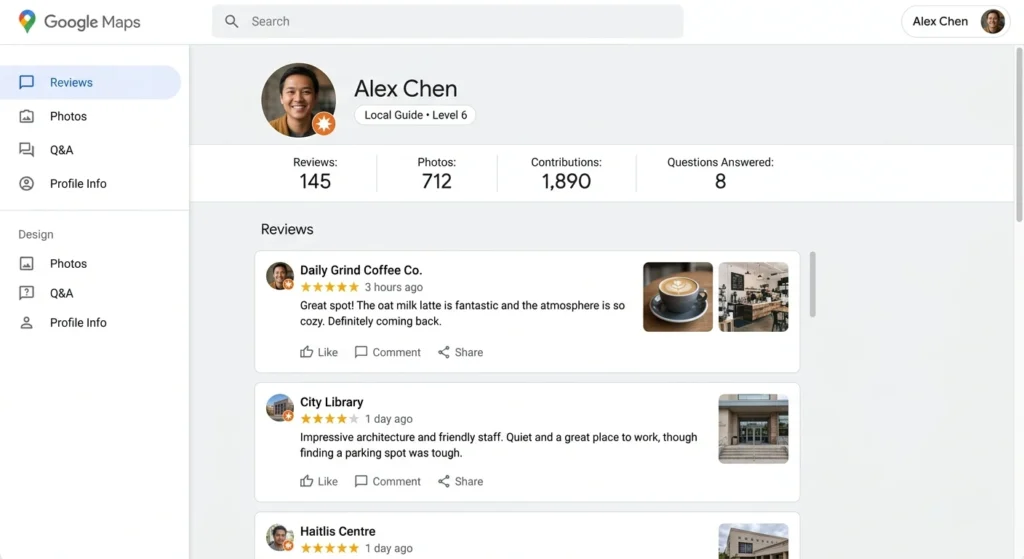
If you want to see all reviews left by one particular Google user, the trick is to open their public profile.
Follow these steps:
- Open any review written by that person on a business listing.
- Click on their name or profile photo.
- Their public profile opens, showing every review they have posted across Google Maps.
You will usually see:
- Total review count
- Local Guide level (if applicable)
- Photos and videos they have uploaded
- Star ratings they have given to other businesses
This method is useful when you want to verify whether a reviewer is genuine. A user with one review and no photos is suspicious. A user with hundreds of detailed reviews across different cities is far more credible. Reading their other reviews also tells you if they are a habitual complainer or a balanced reviewer.
Method 4: Use Browser Find (Ctrl + F or Cmd + F)
This is an old-school but reliable trick that most blogs forget to mention properly. It works inside Google Maps when the in-built search bar feels limited.
Steps for desktop:
- Open the business listing on Google Maps.
- Click into the Reviews tab.
- Scroll down so more reviews load (Google loads reviews lazily, so keep scrolling for a minute on big businesses).
- Press Ctrl + F (Windows) or Cmd + F (Mac).
- Type the name you want to search for. Every match gets highlighted in yellow.
Steps for mobile:
- Open Google Maps in a mobile browser (not the app).
- Switch to desktop mode using the browser menu.
- Tap the three-dot menu and choose “Find in page.”
- Type the name and tap through the matches.
This method has one limitation: it only searches reviews currently loaded on the page. If a business has 5,000 reviews, you will need to scroll for a while before pressing Find. Still, it remains the best free workaround when the in-built bar misses something.
Method 5: Use Google Search Operators for a Reviewer Name
Sometimes you want to find reviews left by a person across the entire Google Maps ecosystem. Google search operators help you do that.
Try this command in Google Search:
“Reviewer Name” site:google.com/maps
For example: “John Smith” site:google.com/maps
Google then returns indexed Maps pages that mention that name. Results are not always perfect, but it is one of the few ways to perform a Google reviews search by name across multiple business listings without using paid tools.
Other useful operators:
- “keyword” “business name” site:google.com/maps to find a keyword inside a specific business listing
- “5 stars” “business name” site:google.com/maps to surface high-star reviews
- “reviewer name” after:2025 to filter by recent activity
A small caveat: not every review is indexed by Google’s main search engine. If a name is too common (think “John Smith” or “Jennifer Brown”), expect a lot of unrelated noise.
Method 6: Search Google Reviews on Mobile
Mobile is where most American consumers actually read reviews, but the experience is slightly different from desktop.
Inside the Google Maps app:
- Tap the search bar and look up the business.
- Tap the listing, then scroll down to the Reviews section.
- The same “Search reviews” bar appears between the rating summary and the review list.
- Type any name or keyword to filter reviews.
Inside the Google Search app:
- Search for the business name.
- Tap “Reviews” inside the knowledge panel.
- Use the search and sort options that appear.
Voice search note: You can ask Google Assistant or Siri something like “show me reviews for Whole Foods Market on Madison Avenue”, but voice search cannot dig inside the reviews to filter by reviewer name yet. For that, type-based searching still wins.
Method 7: Third-Party Review Management Tools
If you run a business with hundreds or thousands of reviews, manual searching gets tiring fast. Several third-party tools can help you sort, filter, and respond to feedback at scale.
Common options used by US small business owners and agencies:
- BirdEye for multi-location review aggregation and sentiment analysis
- BrightLocal for local SEO audits combined with review tracking
- Podium for messaging customers and collecting more reviews
- ReviewTrackers for filtering and exporting reviews into reports
- Whitespark for citation management and review monitoring
These tools are particularly useful if you want to filter reviews by reviewer name across multiple branches, automate alerts when a specific keyword shows up, or display reviews on your website. Just make sure the tool is officially integrated with the Google Business Profile API to avoid sketchy scrapers.
If you are not ready to pay for a tool, you can also set up free Google Alerts for your business name plus the word “review” to get an email every time someone mentions you on indexable parts of the web.
Searching by Name vs Searching by Keyword: Know the Difference
People often mix these two up. They are related but not the same.
- Search by name means looking for a business name, a reviewer’s name, or a person mentioned in a review (like a staff member).
- Search by keyword means hunting for a topic or feeling inside reviews, such as “fast delivery”, “burnt food”, or “professional”.
Both use the same Google Maps search bar inside the Reviews tab. The difference is what you type in. A smart approach is to combine the two. For example, search “Mike parking” to find every review that mentions a staff member named Mike near the word parking. That kind of compound search is something competitors barely touch, and it is incredibly useful for a real audit.
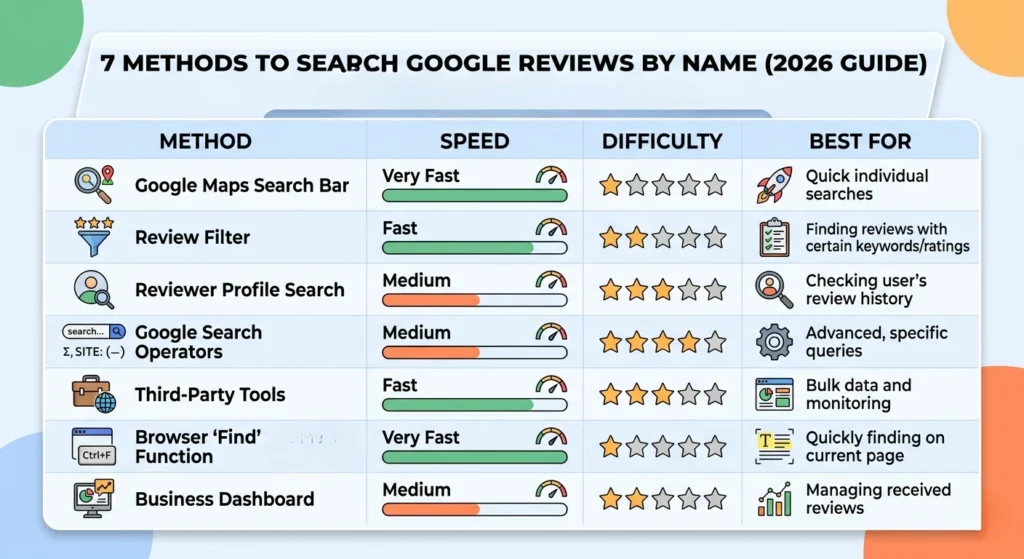
Quick Comparison: Which Method Should You Use?
| Method | Best For | Speed | Difficulty |
| Google Search Panel | Quick rating check | Very fast | Easy |
| Google Maps Reviews bar | Filtering inside one business | Fast | Easy |
| Reviewer’s public profile | Vetting a specific user | Medium | Easy |
| Ctrl + F browser find | Bulk scanning loaded reviews | Medium | Easy |
| Google search operators | Finding a name across Maps | Slow | Intermediate |
| Mobile app search | On-the-go research | Fast | Easy |
| Third-party tools | Multi-location businesses | Fast | Paid / Advanced |
If you are a casual user, methods 1 to 4 cover almost every situation. If you are a business owner running multiple locations, method 7 saves hours every week.
Common Challenges When You Search Google Reviews by Name
A name-based search is not always tidy. Watch out for these traps:
- Duplicate listings. Two businesses can share a name, especially in big cities like New York, Los Angeles, or Chicago. Always confirm the address and category before trusting reviews.
- Common reviewer names. “John Smith” or “Jennifer Brown” might return countless unrelated profiles. Add a city or business detail to narrow it down.
- Hidden or deleted reviews. Google sometimes removes reviews that violate its prohibited content policies. Those will not show up in any search.
- Lazy loading on Maps. The Maps Reviews tab loads only a few reviews at a time. Scroll patiently or use the in-built search bar instead of Ctrl + F for big listings.
- Fake reviews. Look for vague language, no photos, accounts with only one or two reviews, and bursts of identical praise on the same day. These are red flags.
Spotting these issues quickly is part of doing the search right. If you want a deeper dive into how Google decides what shows in local search, our AI SEO Guide for 2026 breaks down the latest ranking signals in plain English.
How Business Owners Should Use a Google Reviews Search by Name
If you are running a business, this is where the real value sits. A Google reviews search by name is not just a curiosity, it is a reputation management workflow.
Here is a simple weekly routine you can copy:
- Search your own brand name on Google and Google Maps. Read the latest five reviews. Reply to every single one (positive and negative).
- Search competitor names with negative keywords like “bad”, “rude”, or “refund”. Note their weak spots and fix those issues in your own service.
- Search staff names to see whether any team member is being mentioned often. Recognize the stars publicly and coach the ones with complaints.
- Search city names and your industry (“best plumber Chicago” or “best dentist Austin”) to see who ranks above you and study their review themes.
- Track recurring keywords in your own reviews. If “long wait” pops up too often, that is your next operational fix.
This kind of structured research is the same approach we use inside our SEO services when auditing a client’s local presence. It costs nothing to do, but it consistently moves the needle.
How to Find Your Own Google Reviews
Sometimes you want to look up reviews you yourself have posted, maybe to edit one or delete it.
- Sign in to your Google account.
- Open Google Maps.
- Tap the menu icon, then choose “Your contributions.”
- Click the “Reviews” tab.
- You will see every review you have ever posted, with options to edit or delete each one.
If you are a business owner, you can manage reviews left on your listing by signing into your Google Business Profile dashboard. You can flag fake reviews, reply to genuine ones, and track ratings over time.
Tips to Get More (And Better) Google Reviews
A name-based search is more useful when there is enough content to search through. To grow your review base honestly:
- Add a Google review link to your email signature, invoices, and thank-you pages.
- Train staff to ask for a review when a customer is visibly happy.
- Use a QR code at the counter or reception that opens your review form.
- Respond to every review within 24 to 48 hours. Owner responses signal an active, trustworthy business to both customers and Google’s algorithm.
- Never buy reviews. Google detects patterns and the FTC has cracked down hard on fake review schemes in the United States. Your listing can be suppressed or removed.
For a broader playbook on attracting and converting customers organically, our inbound marketing guide walks through the full funnel.
Frequently Asked Questions
1. Can I search Google reviews by reviewer name for free?
Yes, completely free. Open the business listing in Google Maps, click the Reviews tab, and type the reviewer’s name into the in-built “Search reviews” bar. You can also click on any reviewer’s name to open their public profile and read every review they have written. No paid tool is required.
2. Why can I not find a Google review I know exists?
Three common reasons: the review may have been deleted by the user, removed by Google for violating its policies, or it might still be loading lazily on the Reviews tab. Scroll down to load more reviews, then use the search bar again. Newly posted reviews can also take a few minutes to appear.
3. How do I see all reviews written by one Google user?
Open any review written by that person, then click on their name or profile picture. Their public profile will load, showing the total count of reviews and a full list of every business they have rated. This is the only official way to do a Google reviews search by name across multiple listings for the same user.
4. Can business owners see who left a Google review?
Yes, only public information is shown. Business owners can see the reviewer’s display name, profile photo, star rating, comment, and the date posted. They cannot see the email address, location, or any private contact details. Anonymous reviews are not allowed on Google, so every review is tied to a Google account.
5. How do I report a fake or fraudulent Google review?
On the business listing in Google Maps, find the suspicious review, click the three-dot menu next to it, and choose “Report review.” Pick a reason (off-topic, spam, conflict of interest, etc.) and submit. Google’s team reviews the report and removes it if it violates the content policies. For complex cases, business owners can also escalate through the Google Business Profile support form.
Conclusion
A Google reviews search by name is one of those small skills that gives a big return. Customers use it to choose the right shop. Business owners use it to protect their brand. Marketers use it to find weak spots in competitors. And smart locals use it to spot fake feedback before being misled. The seven methods above cover every scenario you are likely to face, from a casual look-up to a full reputation audit. Bookmark this guide, run a search on your own business this week, and act on what you find. Reviews are the fastest, most public form of feedback your business will ever receive, and how you handle them tells the world more about you than your website ever could.
If you want help turning Google reviews into stronger local rankings and steady leads, take a look at our affordable SEO services or contact the team for a quick audit. We will tell you exactly where your reputation is leaking traffic and how to plug the gap.