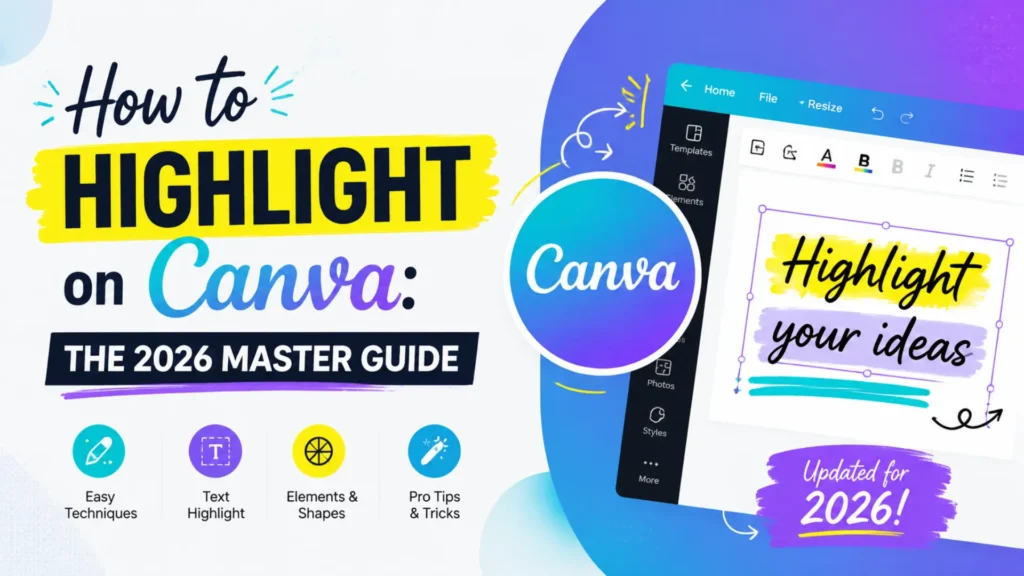
Canva has become the go-to tool for creators, but with so many users, how do you make your content stop the scroll? The secret lies in the visual hierarchy. Highlighting isn’t just about adding color; it’s about guiding your reader’s eye to exactly what matters. In this beginner-friendly guide, we’ll show you exactly how to highlight on Canva using text effects, the new Draw tool, and professional image techniques to make your designs pop.
How to Highlight on Canva Using Text
Highlighting text on Canva is simple with tools like the Background Effect, which adds a clean, permanent highlight to your text. Customize the roundness, spread, transparency, and color to suit your design needs.
The “Background Effect” (Best for Pro)
This is the most “permanent” way to highlight. The highlight moves with the text, making it perfect for templates.
- Select your text box.
- Click Effects in the top navigation bar.
- Choose Background from the side menu.
- Customize your look:
- Roundness: Slide to 0 for a sharp box or 100 for a pill shape.
- Spread: Increase this to make the highlight “breathe.”
- Transparency: Lower this for a modern, pastel look.
- Color: Choose a high-contrast color (Yellow and Neon Green are 2026 trends).
The “Draw Tool” (Best for Organic/Hand-Drawn Styles)
If you want your design to look authentic and trendy, use the Draw tool.
- Go to the left-hand sidebar and click Draw.
- Select the Highlighter marker (the one with the flat, angled tip).
- Set your Weight and Transparency (50% is the “sweet spot”).
- Draw a stroke over your text. Pro Tip: Canva’s AI will automatically “straighten” your stroke if you hold your mouse/stylus for a second at the end of the line.
The “Element Layering” Method (Best for Custom Shapes)
- Press the ‘R’ key on your keyboard to instantly create a rectangle.
- Drag the corners to turn it into a thin strip.
- Change the color and click Position > Layers to move it behind your text.
How to Highlight Images and Icons
Highlighting isn’t just for words. To make a product or a person stand out in a busy design, use these “focal point” techniques.
The Outline (Sticker) Effect
Commonly used by top YouTubers, this makes subjects “pop” off the background.
- Select your photo and click Edit Photo.
- Navigate to Shadows and select Glow.
- Turn Blur to 0, Transparency to 100, and increase the Size. This creates a crisp, highlighted border.
Using Frames for Emphasis
Instead of a flat image, go to Elements > Frames. Dropping your image into a circular or unique geometric frame acts as a natural highlight, separating the image from the background clutter.
Comparison of Highlighting Methods
| Method | Best For | Effort Level |
| Background Effect | Consistency & Templates | Easy |
| Draw Tool | Creative & Social Media | Medium |
| Glow/Shadow | Product & Profile Photos | Easy |
| Shapes (R-Key) | Unique Branding | Easy |
Best Practices for Highlighting (SEO & Design)
To rank your design (and your blog!), follow these three golden rules:
- Contrast is King: Never use a light highlight on light text. Ensure your WCAG contrast ratio is high so your text remains readable.
- Don’t “Over-Highlight”: If everything is highlighted, nothing is. Highlight only the Action Item (e.g., “Sign Up Now”) or the Primary Headline.
- Use Brand Colors: Avoid using “default” yellow. Use the color picker to select a shade that matches your brand’s personality.
Additionally, if you’re creating a music video with Canva, these principles also apply! By emphasizing key visuals, such as song titles or important imagery, you can guide your viewers’ attention and keep them engaged throughout the video.
Frequently Asked Questions (FAQs)
Can I highlight a single word within a paragraph on Canva?
You cannot apply the “Background Effect” to just one word. You must either create a separate text box for that word or use the Draw tool to manually highlight it.
Is the highlighter tool available on the Canva Free version?
Yes! Both the Draw tool and the Background Effects are 100% free.
How do I remove a highlight in Canva?
If using Effects, click Effects > None. If using the Draw tool, select the Eraser from the Draw menu and swipe over the highlight.
How to change highlight color in Canva?
Simply click on the highlighted element or the text box with the Background Effect. Click the Color Tile in the top toolbar to choose a new shade. To match your branding, you can enter a specific Hex code.
Can I highlight text in Word using Canva?
Canva and Microsoft Word are different tools. If you are looking for how to highlight text in Word, you simply select your text and click the “Text Highlight Color” pen in the Home tab. However, for more creative designs, many users prefer importing their Word text into Canva.
How to highlight on Canva Android?
The process is identical to the iPhone app. Select your text, tap Effects at the bottom of the screen, and choose Background. You can adjust the spread and roundness using the sliders.
Conclusion: Master Your Visual Hierarchy
Mastering how to highlight on Canva is an essential skill for creating eye-catching, professional designs. Whether you’re emphasizing text, images, or icons, the right highlighting technique can guide your audience’s attention to key elements in your design. By using methods like the Background Effect, Draw Tool, and Glow/Shadow techniques, you can add depth and clarity to your work. Remember to maintain high contrast, focus on important elements, and incorporate your brand’s colors for a unique touch. These simple yet powerful tips will help elevate your Canva designs, ensuring they stand out and grab attention in today’s visually competitive world.